Dancer-Plugin-Auth-Google
view release on metacpan or search on metacpan
[Dancer::Session](https://metacpan.org/pod/Dancer::Session) for details
about supported session engines, or search the CPAN for new ones.
### Google Application ###
Anyone with a valid Google account can register an application. Go to
http://console.developers.google.com, then select a project or create
a new one. After that, in the sidebar on the left, select "Credentials".
First, go to the *OAuth consent screen* tab and set it up with you website's
logo, desired credentials (the "email" and "profile" ones are granted
by default) and, specially, your **authorized domains**. We'll need those for
the next step!
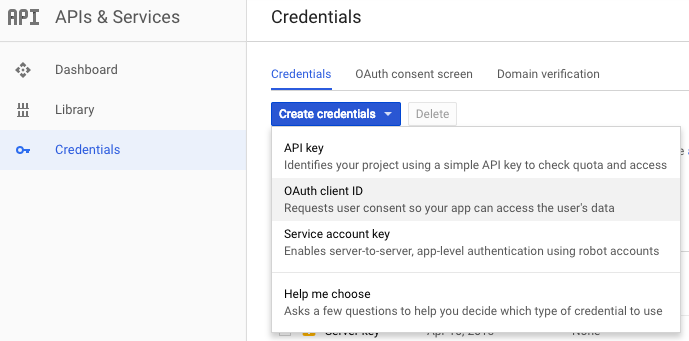
Now go to the *Credentials* tab and click the **Create credentials**
button/dropdown and select **OAuth client ID**.
A dialog will appear. In the "Application type" section of the dialog,
select *"Web application"*.
Under the "Authorized JavaScript origins" field, put the domains of both
your development server and your production one
(e.g.: http://localhost:3000 and http://mywebsite.com). You will only be
lib/Dancer/Plugin/Auth/Google.pm view on Meta::CPAN
=head2 Google Application

Anyone with a valid Google account can register an application. Go to
L<https://console.cloud.google.com/apis/dashboard>, then select a project or create
a new one.

After that, in the sidebar on the left, select "OAuth Consent Screen".

Inside, go to the I<Branding> tab and set it up with you website's
logo, desired credentials (the "email" and "profile" ones are granted
by default) and, specially, your B<authorized domains>. We'll need those for
the next step!

Now go to the I<Clients> tab and click the B<< + Create client >>
button/dropdown to create an B<OAuth client ID>.

=for HTML
<p><img src="https://raw.githubusercontent.com/garu/Dancer-Plugin-Auth-Google/master/share/create-new-id.png"></p>

A dialog will appear. In the "Application type" section of the dialog,
( run in 0.897 second using v1.01-cache-2.11-cpan-007c89162af )